Introduction - Mark My Screen
See also
Hotkey
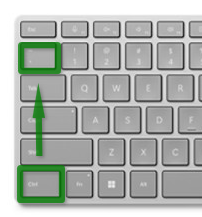
Toggle drawing mode using the hotkey:
Ctrl + § (above Tab, left of 1).
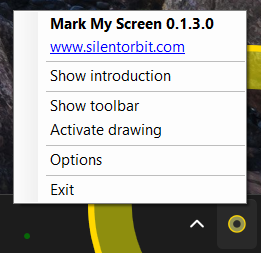
System tray
Start drawing directly or show the toolbar.
Live mode
When not drawing you can fully interact with all other programs on your computer.
All drawings can be clicked though to access your program below.
Mouse highlight
Highlights you mouse cursor position and mouse clicks(left, middle, right).
Turn off in options.
Change size using the wheel on the toolbar or Alt + Mouse wheel

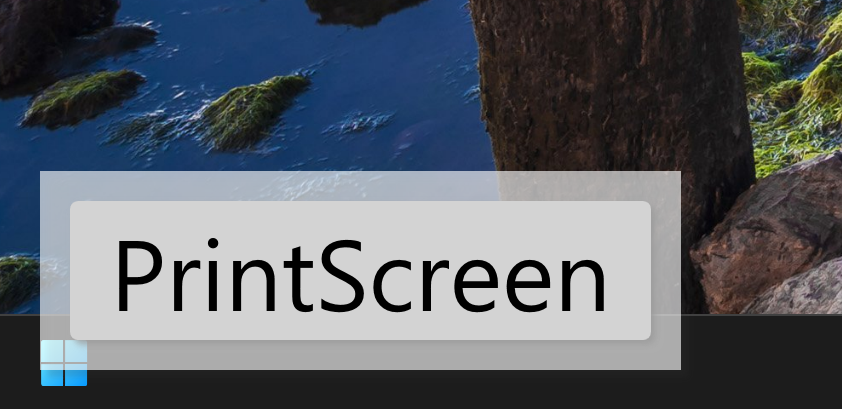
Show keys
Shows on the screen all the keys you press.
Enable in options.
Drawing
Toolbar
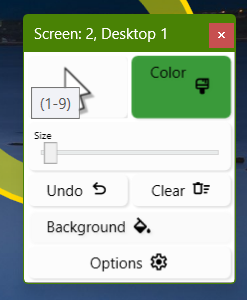
Switch to drawing using the shape button. Arrow exits drawing mode.
Mouse wheel
Use the mouse wheel on the toolbar buttons to change:
Arrow: highlight size
Shapes: draw width
Color: Drawing transparency
Background: Background transparency
Keyboard shortcuts
1 Freehand
2 Line
3 Numbered markers
4 Rectangle
8 Ellipse
Draw color: C, Color key (Example: C, R = red, C, G = green, click the toolbar for all available colors).
Draw width: W, 0-9 (or use the mouse wheel)
Ctrl + Z Undo last drawn shape.
Ctrl + E Erase all.
Esc Clear and exit drawing mode.
Background
The background can be fully transparent, to mark up the content behind, or semi-transparent to focus on your drawing.
Background color: B, Color key
Examples:
B, R for red,
B, G for green,
B, B for blue,
Background opacity: O, 0 - 9.
Options
Press Ctrl + O to open the options, or open it from the system tray icon.